If you are a sysadmin, then you know the problem with services of vital equipment that keep failing every now and again!?  So what do you do?  Wait for the users to start calling, buy an expensive monitoring solution or just do some simple scripting?

Well I’ll just give you a quick brief on how to setup the cheap (free) scripted solution that will help keep your users happy and the services running.

I was inspired by an article at; http://www.intelliadmin.com/index.php/2010/01/get-notified-when-a-service-fails/
which was quite cool except he rely on a third party utility for mailing AND he does not relaunch the service..   I have chosen to create a VBS script that will E-Mail AND re-launch the failed service in one sweep.

Ok here goes.

  • First of all log on to the server/workstation in question (the machine where the service is running).
  • Download my vbs script here  (you may need to rightclick and choose save as)
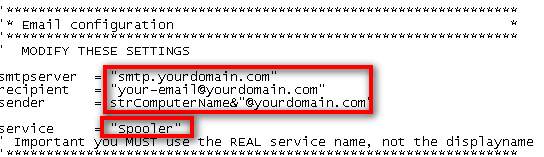
  • Modify this part of the script in notepad with your details (smtp server, email address etc)
    script1
  • Save the file to somewhere on the C drive (I usually use “c:\windows\schedule”)
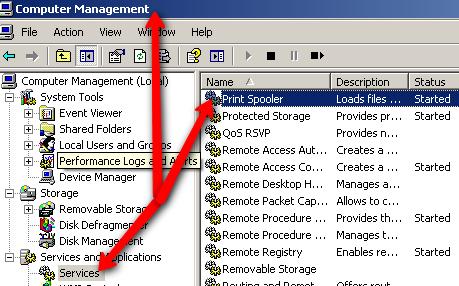
  • Now enter “Computer management” (right click on My Computer and choose “Manage”)
    commanager
  • Select the service you wish to modify/monitor and double click it
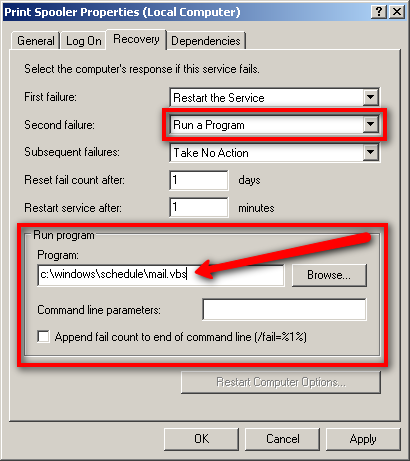
  • Modify the service as follows (you will need to modify this if you use another location for the script)
    run_a_program
    You will note that I set the script to run at the “second fail” not the first, you can set it to run at the “first fail” if you like – to avoid being bombarded I just choose first to be informed the second time a service fail.
  • The service name (described in the script) is NOT the displayname, it is the REAL name of the service, you can find this here;
    servicename

And viola you are done, from now on you will get an E-Mail every time a service has failed twice (or the first time if you prefer)..  It’s all very basic but neat.

Delphi7If you are still creating Delphi 7 applications, then you may have had problems with UAC in Windows Vista, 7 and 2008, your application launches but is unable to eg. access the HKEY-LOCAL-MACHINE hive of the registry, what you need is to have the application launch with Administrative rights.

You could just rightclick on the application icon and choose “Run as administrator” however this is hardly professional for a program you distribute to others.

Well, it took a bit of Googling and a bit of experimenting, but here’s the recipe to creating UAC aware applications in Delphi 7.


  • First, create a new application and save the project.
    In the project directory you just created create 2 files;
    .
  • The first file “UAC.MANIFEST” should look like this;
    —————————————————————————–
    <?xml version=”1.0″ encoding=”UTF-8″ standalone=”yes”?>
    <assembly xmlns=”urn:schemas-microsoft-com:asm.v1″ manifestVersion=”1.0″>
    <assemblyIdentity version=”1.0.0.0″ processorArchitecture=”*” name=”UACAwareApplication” type=”win32″/>
    <trustInfo xmlns=”urn:schemas-microsoft-com:asm.v3″>
    <security>
    <requestedPrivileges>
    <requestedExecutionLevel level=”requireAdministrator”/>
    </requestedPrivileges>
    </security>
    </trustInfo>
    </assembly>
    —————————————————————————–
    .
  • Second file “vistaprog.rc” should look like this;
    —————————————————————————–
    1 24 uac.manifest
    —————————————————————————–
    (yes it’s only one line)
    .
  • Now you need to compile the “vistaprog.rc” file.
    you do this by running the “brcc32.exe” (found in the Delphi Bin directory) with this parameter “brcc32.exe vistaprog.rc“, this will compile a “vistaprog.res” file (this is a bit different/easier on Delphi 2007 etc, see links at the bottom for more details).
    .
  • Now you will need to modify your Delphi project.
    In the “unit1.pas” file find {$R *.dfm} and insert {$R ‘vistaprog.res’} just below it, save the project and compile it.

You application is now Vista/Windows 7/2008 UAC aware, you will also notice that a small shield is added to the application icon.

When you run your application it will look aimilar to this;

uac-unknown-publisher-prompt

Read more here;
http://www.zhou73.cn/index.php/article/zhou73/2009-02-18/195.html
http://www.zhou73.cn/index.php/article/zhou73/2009-02-18/196.html
http://ruminatedrumblings.blogspot.com/2008/03/vista-uac-manifest.html
http://www.experts-exchange.com/Programming/Languages/Pascal/Delphi/Q_22755023.html

You can quite easily make all USB devices on a machine ReadOnly by adding a key to registry, it is quite easy and painless.

Once the registry key is added and set you may have to wait a bit or eject and reinsert the device but then the device is ReadOnly.  ‘Unlocking’ the drive again is equally easy, you just set the key value to “0” (zero) and everything is back to normal..

Maybe even an ide for a prank on some of your friends 😉

Key to create;
HKEY_LOCAL_MACHINE\SYSTEM\CurrentControlSet\Control\StorageDevicePolicies\WriteProtect
Value DWORD; “1” = ReadOnly, “0” = Normal mode.

registryhack1

I spend some time on this before cracking the nut, so I thought I’d share with you all in case you ever experienced something similar.
HP_QT

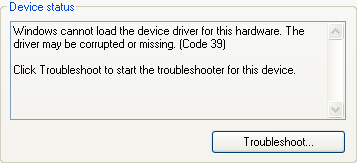
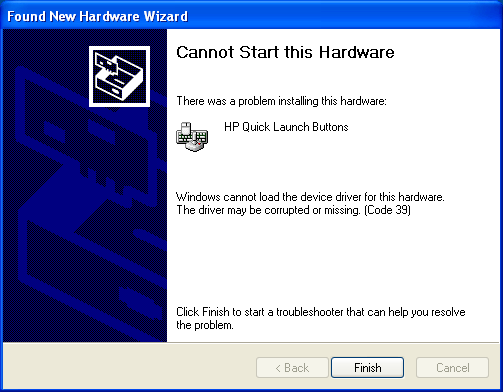
See I was hardware certifying a HP 6930p laptop for SCCM and things was fine until my attention moved to installing the “HP Quicklaunch buttons”, my first issue was that even though I extracted the installed drivers using Driver Magician or Driver Max it did not work – both programs failed to extract the certificate for the drivers thus you would have a ‘drivers not certified’ warning when installing them, well I decided to simply install the HP package with the -s switch and here things became really annoying – the installation proceeded fine and in device manager we moved from “Unknown device” to “HP Quicklaunch Buttons” but accompanied by the text “Windows cannot load the device driver for this hardware. The driver may be corrupted or missing. (Code 39)” and no amount of reboots fixed this.  I tried with numerous versions of the install package, just in case it was some issue with a specific version of the package – but all had the same result.

hpqt2

hpqt_dm

A lot of googling led me to this article where a guy named Eric has a very similar issue, he has detected a common denomitor namely  virtualization.  Eric has discovered that if he deploy a workstation using a wim image captured on a VmWare workstation and then later try to install “HP Quick Launch Buttons” he gets this issue with the ‘corrupted or missing drivers’, but if he manually installs the same machine then there is no issue. 

The solution is simple, all that is missing to make things work is three files;
hidclass.sys
hidparse.sys
hidusb.sys
these files need to be copied to “C:\windows\system32\drivers” (or the equivalent on your system), and after a reboot the “HP Quick Launch Buttons” is now working fine..  But where do you get these files from?  You can of cause get them from a different system (copy them to a usb pen or what ever), but there is another easy way around this – see these three files are all related to “Human Interface Devices” and all you need to do to have them installed (copied to c:\windows\system32\drivers) is to insert an external usb mouse or keyboard (this will launch an automated installation of these three files).  Now where inserting a USB mouse or keyboard may work for a single user it’s not really appropriate for corporate installation environments, so in our corporate setup we will be copying these three files into the C:\windows\system32\drivers folder during installation – having them there will do no harm.

Just finished installing a few patches to a Windows 2003 box and was puzzled about one of the updates “Windows Powershell 2.0 and WinRM 2.0”, now Powershell I knew about but what is this WinRM (Windows Remote Management) all about.

Well from what I can tell it’s rather basic, it’s more or less the corporate (industry standard) replacement of PsExec.exe  from Sysinternals, a way to launch commands, scripts etc. remotely.  WinRM (Windows Remote Management) offers some additional features and can be used in scripting, from what I can tell it may also work on hardware devices that support WsManagement.

For more details look here;
http://en.wikipedia.org/wiki/WS-Management
http://blogs.technet.com/jonjor/archive/2009/01/09/winrm-windows-remote-management-troubleshooting.aspx

Is your harddisk working overtime and you have no idea why!?  We all know the sittuation, especially Windows Vista 2010-01-25_1231and Windows 7 seem to spend a lot of time working on your harddisks without no apparent reason, and it is very hard determining what process it is that is actually causing all the disk/processor activity.  Well one way of debugging this is to download procexp.exe from http://live.sysinternals.com, another approach is to try a utility I just got hold of that offers an easier overview “What is my computer doing” http://www.itsth.com/en/produkte/Whats-my-computer-doing.php 


Download it here;
http://www.itsth.com/download/getfile.php?file=WhatsMyComputerDoing_E.exe

dnsb1Are your DNS settings configured for optimal performance?  Don’t know?  Well www.grc.comhas released a DNS Benchmarking utility that will not only test your configured DNS servers but also check a bunch of known DNS servers and thus provide you with a diagram of which servers perform best for you, along with this DNS servers are also tested for known security problems.
The tool is not ‘officially’ released as the documentation is not yet ready, but the tool is available for download and usage never the less;

http://www.grc.com/dns/benchmark.htm  (please note the download link at the top does not work, use the one at the bottom “Download a copy to your computer“)

Now this is cool, on your Windows 7 machine create a new folder and name it;


GodMode.{ED7BA470-8E54-465E-825C-99712043E01C}

and it is immediately transformed into the mother of all Control Panels, you will have access to virtually any setting in Windows from one place.

UPDATE:
Later notes have it that you can replace the “GodMode” text string with anything as long as the GUID is the same, thus the title is a bit misrepresentive however it is still the ultimate “Control Panel”..  Should also work on some Windows Vista versions.

13851-250x161crop0According to the Danish online newsletter/magazine www.newz.dk (via link) Bitlocker encryption has been broken/cracked, or at least it has become possible to discover the passwords rather quickly using a third party tool Passware Password Recovery –  http://www.lostpassword.com/kit-forensic.htm

And sure enough if you visit their website you will find this statement;
“Recovers encryption keys for hard drives protected with BitLocker in minutes New”

Although this indeed sounds very interesting there seem to ba a catch, you need a memory image on which to apply the Passware Password Recovery utility.  Read more here

It would seem OpenDNSwill be getting some competition in the DNS field, as would be expected it’s Google that is fiddling with a new DNS service “Google Public DNS“..  It will be interesting to see whatGoogle will be offering.  As a side comment I can mention that OpenDNS has recently released a pay version of their free DNS service and added a few new services (antimalware etc) so you really should give it a spin if you have not already.