2015-06-10 15_59_50-cryptolocker - Google Search - Internet ExplorerAfter experiencing Ransomware a few times during the past months in our corporate setup I decided to scribble down some cleanup notes and things you can do to combat this.

This guide is seen from the point of a sysadmins and thus not from an enduser, however some tricks may apply even so (depending on various factors). In addition, this guide focuses on the cleanup of the server and not the client computer, which in my opinion always should be reinstalled after an incident like this.

This guide also assume that you have Shadowcopy enabled on your server; if not then you will need to go for a restore from backup (this however also loosely covered in the guide).  See the good thing about Shadowcopy is, that as the server is not infected nor is the servers shadowcopy – you thus have quick access to non-corrupted data from here quite easily and quickly.  Client wise things are different as most ransomeware clears the shadowcopy locally to ensure against easy cleanup locally, I heard that this may fail if the user is not a local administrator on his/her pc, so you may still have a straw to cling to if this is the case for recovering the local data easily.

Background.

First, let me sum up what this ransomware is all about.

Ransomware is a special type of malware, opposed to a regular virus it is not as much aimed at spreading but more focuses on its area of business (to extort users to pay to regain access to their data).  Ransomware is often spread via phishing mails, you may receive a mail stating that you have a package at the post office (just one example) and that you need to download and open the linked file to get the details.  Once you download and run the file from the phishing mail, it will execute the ransomware software, which will run in the background encrypting your files without you noticing it (to begin with).

It is very hard protecting against malware like this, as the makers of this type of malware keep changing the software to avoid detection.  Furthermore, antivirus is only of limited help as it cannot restore files that has been encrypted.

Ransomware usually starts by encrypting local files first and then move on to server shares.

Ransomware is actually not a new thing; it has existed since the MS-dos days in some form or other. I recall a very old virus that infected your boot sector, and upon the trigger event (could be a date or a number of boots) it would delete your fat table and bring up a slot machine, if you won the game you would get your FAT table back if not everything was lost.  Same but different.

How to get your data back after it being encrypted?  Well best bet is backups, hopefully you have either backups on some USB disk or in the cloud, if not you are likely in serious problems.  You can also choose to pay the ransom and have your data de-crypted, the price for this is usually around 100€ or 100$ depending, and from what I have heard it should work quite well and reliable to get your data back this way – some of the ransomware vendors should even have kind of customer support to assist you if you have problems – but supporting organized crime hardly seem like a good idea in the long run.

Anyhow, let us move on to the “fun” part, how to clean-up a file server after a visit from a client infected with ransomware.

So you have been struck by Ransomware (Cryptolocker, Cryptowall, Cryptodefence etc etc etc), “congratulations” and welcome to the club 🙁

Let us go through some steps to get things back on the road.

Important tip;

If you are using Shadowcopy on your server, DO NOT START CLEANUP BEFORE DATA HAS BEEN RESTORED – you may just waste storage space from your shadowcopy pool and thus be able to restore less data.


Step 1 – Stop the disaster from escalating.

You need to figure out which user is infected and stop this users pc from encrypting more files on your servers, if you are not fast to react your server will quickly look like this (the white is the infected files, it’s a mess).

Step 1.1 – how to identify the user

There are obviously different tactics for this, but two obvious once are;

1) look at an encrypted file and determine the owner – now to my surprise this did not work on the last server I looked at, here all the files for some reason was set to be owned by the local administrator group.

2) Look at the home folder for your users – most ransomware drop files on how to decrypt your data and these may serve as tell tail signs of “infection”.

2015-06-10 15_33_47-mRemoteNG - confCons.xml2015-06-10 15_29_46-mRemoteNG - confCons.xml

Thus, the user with all the “decrypt” files in his homedrive will be the user you are after.  Simply search the user’s folder for files with the word “decrypt” in it. The ransomware normally also targets the users local drives first, thus you may catch a lucky break if you like us have redirected the “My Documents” folder to the users home directory on the server, in our cases this meant that the infected users had tons of these files on his home share.

Step 1.2 – Shutdown the user’s computer

Shutdown the user’s computer and change the password of the user (as the user has malware on his/her computer his/her passwords (all of them) are likely now compromised.


Step 2 – Assess the damage

You now need to look at the server to determine how much data have been encrypted. How to determine the “infection” rate, well that depends – different ransomware uses different tactics, however at least for now they seem to share these tactics.

1) The ransomware will encrypt files, then add some extension to the file to show that it is encrypted (the extension may vary, but could be .encrypted or .iufasee or something totally different/random – but still the same for all encrypted files).

2) After encrypting a complete folder ransomware will often add 2-4 files that pertain to how to decrypt data, these files could be named “HELP_DECRYPT.TXT” / “HELP_DECRYPT.BMP” / “HOW_DECRYPT.TXT” / “!Decrypt-All-Files-iufasee.bmp” or anything like that.

2015-06-10 15_29_46-mRemoteNG - confCons.xml

NOTE: the ransomware is quite clever as not to change the creationdata/last modified date as this makes it hard to just look for files changed in the past 24h – however, as I mentioned in step two then the ransomware often creates “how to decrypt” files/pictures/links in the folders and these may be used to spot the “infection”.

My suggestion is;

  1. Try to determine the file extension using the tips above.
  2. Use Windirstat to get an idea of the scope of the incident (you can see an example below) http://windirstat.info/
  3. See screenshoot (the white is the encrypted/infected data).

cryptolocker


Step 3 – Restoring data (the non-encrypted files)

See we had a special challenge with restoring data as we use online backup, and the restore hence will take a LONG time seeing that the data need to come from the WAN restoring gigabytes of data would take a LONG time, so we had to get creative to make the cleanup as fast as possible.

You first need to determine the time for the last backup/shadowcopy snapshot before the “infection” occurred.

If you have shadow copy, then go back through the snapshots to find the time where files had their original extension. You may get best results if you look at the infected users home folder, this is likely the first folder to be “infected” (you can also look at the creation date/time of the “how to decrypt” files which may give you a lead).

2015-06-10 15_29_46-mRemoteNG - confCons.xml

If you have local backup it is quite easy I guess, just restore more or less all data (with the do not overwrite newer/changed versions option set) and then proceed to delete the encrypted data and the “help files” (the once on how to decrypt) – see section below on how to cleanup.

If however you cannot easily restore data from backup (like e.g. if you use “online backup” like we did), then move to shadowcopy (which you hopefully have enabled on the server).

You could of cause restore one file/folder at the time from shadowcopy, this will take forever especially if users have worked on the folder structure meanwhile. So why not make it fast and easy by using robocopy (yes it is actually possible to use Robocopy, we found a cool way to do this).

Restoring non encrypted data via ShadowCopy and Robocopy.

  • Determine the “last good” shadowcopy, the one just before files started to be encrypted.


    1. On the server list the shadowcopy snapshots using the dos command, you do this to get the “identifier” which we will need in a moment.Start an administrative command prompt and issue the command;
      vssadmin list shadows
      (you may need to change drive to the drive you want to see)This will give you a long list of available snapshots, see screenshot.
      2015-06-10 15_00_00-mRemoteNG - confCons.xmlLook for the creation time and find the block just before the incident occurred.

      In this block “Contents of shadow copy set ID {…….}” look for the line “Shadow Copy Volume”, copy this line to a notepad starting with \\

      In this example;
      2015-06-10 14_56_13-mRemoteNG - confCons.xml

      \\?\GLOBALROOT\Device\HarddiskVolumeShadowCopy107
      NOTE: the number at the end will be different for you.

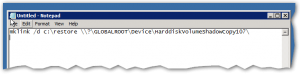
      IMPORTANT! Now add a “\” to the line in notepad: \\?\GLOBALROOT\Device\HarddiskVolumeShadowCopy107\

      Finally add a prefix of “mklink /d c:\restore ” to the line in notepad.
      So the final line should look like this;
      2015-06-10 15_12_14-mRemoteNG - confCons.xml

      mklink /d c:\restore \\?\GLOBALROOT\Device\HarddiskVolumeShadowCopy107\
      (note: the c:\restore is a folder/name YOU choose, it can basically be anything you choose, the name must NOT exist before you run the command)Now run this command from the administrative command prompt.
      2015-06-10 15_09_35-mRemoteNG - confCons.xml

      It should give you a feedback much like;
      symbolic link created for c:\restore <<===>> \\?\GLOBALROOT\Device\HarddiskVolum eShadowCopy107\

      2015-06-10 15_13_13-mRemoteNG - confCons.xml

      Now if you write;
      dir c:\restore
      you will have a historic view of how the disk looked at the time of the shadowcopy snapshot, you could get the same via properties “previous version”… but this is much neater as you can access and script it.

  • Now we have the snapshot mounted we can run a robocopy job restoring any data that is not more recent or changed.In this example the command would be something like;ROBOCOPY C:\restore D:\ *.* /XC /XO /E /LOG:d:\restore.log
    2015-06-10 15_18_12-mRemoteNG - confCons.xmlYou will need to suit it to your environment.

    Things to make a note of are the /XC /XO command switches which ensures that we do not overwrite files modified after the “infection”. As the encrypted “infected” files have a different extinction this is not a problem.

    After the restore you can review the restore.log file to see if anything went wrong and see how much data was restored.

    Note, you MAY run into the problem that not everything was in shadowcopy in which case you have to revert to backups, in the incidents we have had “only” 10-20 gb of data was “infected” and our shadowcopy could easily accommodate this.


Step 4 – CleanUp

Final step is to clean up the encrypted files and the decrypt instructions.

Also remove the “directory link” to the shadowcopy snapshot if you used that (see previous section), you can just use “RD <directory name>”.

2015-06-10 15_13_13-mRemoteNG - confCons.xml

I used SearchMyFiles from http://www.nirsoft.net/ as it is easy and very customizable to use to find files, I suggest you take not more than 10.000 files at the time as deleting many files takes quite some time.

2015-06-10 16_41_29-2015-06-10 10_41_17-mRemoteNG - confCons.xml.png - Windows Photo Viewer


Mitigation strategy

  • On fileservers, try to limit access as much as possible – if nothing more than look at making data read-only wherever possible as this alone will protect you greatly.
  • FSRM – File Server Resources Monitor, set this up to detect and trigger alarms on new files where the word decrypt is part of the name – decrypt as part of a filename is uncommon enough to give only limited false alarms – I will create a separate article on the configuration of this later.
  • Supporters / super users – instruct them to react FAST to tell tail signs of ransomware, the faster you manage to stop the “infection” the less to clean up.


Tools that may be useful;

Decrypt Cryptolocker (this most likely will not work, but give it a go anyhow just in case).
https://www.decryptcryptolocker.com/

Windirstat                                     http://windirstat.info/
SearchMyFiles                              http://www.nirsoft.net/

Read more about Cryptolocker; http://en.wikipedia.org/wiki/CryptoLocker

Thanks to:

Torben Slaikjer for finding that link on how to mount shadowcopy snapshot as a directory, this made the job vastly easier.

bitlockericonhero-100301743-largeWe recently enabled Bitlocker in the install process of all laptops in the company I work for, and everything seem to work fine..

However one of our local IT supporters had a problem preparing a new pc, the thing is that Bitlocker encrypts in the background so the installation continue even while bitlocker is encrypting – and here the problem arose, see Bitlocker is clever – it know that it is a waste to encrypt empty space so what it does is to start by reserving all but 6gb of diskspace (as seen below), Bitlocker now encrypts the USED part of the disk and then proceed to write garbage on the reserved portion of the disk (the “free” part) – once done it again free the reserved part and the entire free disk space is again available to the user.

bitlocker2

Well it so happens that our IT Supporters sometime need to install additional software after the initial installation of windows, and then it may become a problem with the only 6gb free space.

What to do, well it is actually quite easy you just pause the encryption process which will free up the reserved part, and once done preparing the pc you restart the encryption process.

To pause the Bitlocker encryption you goto an elevated command prompt and type;

manage-bde –pause driveletter :

once done with whatever you needed done you restart the process with this command;

manage-bde –resume driveletter :

https://technet.microsoft.com/de-de/library/ee449438(v=ws.10).aspx#BKMK_FreeSpace


suspicious-fry So what is up with Truecrypt??  Something fishey is indeed going on, their website www.truecrypt.org has been taken down and is now just redirected to; http://truecrypt.sourceforge.net/

My initial thought was that they had been hacked, but that does not appear so – the redirect happened several days ago and had it been a hack I would have expected it to be fixed by now.  So something more serious seem to be going on.  I read and heard several different ideas on what is going on ranging from protest against the XP end of support, Lavabit a like case, to NSA infiltration.

My personal “favorite” is that it is and internal powerstruggle in the Truecrypt team, the team has always been very secretive and roumers are that then internal power balance in the team has not always been the best.  It is thus likely that the team somehow ended up imploding and subsequently just abandoned the whole thing.

I do feel that if the case is internal power struggels, then the team defaced their own gravestone, why would you not give a good explanation on your website as to what happened instead of having people be suspicious as to possible NSA infiltration etc.

Shame on you Truecrypt team, this exit is just plain irresponsible, grow up and face the music.

A summery of what is known, a repository of the “original” truecrypt files and some additional useful insights can be found on the GRC website;
http://sl.readmydamnblog.com/1xgFhIK

truecrypt-logo

logo-512x5123Just a quick heads up on a cool new utility (free even) …

Working as an IT specialist within a large international corporate entity, we had the challenge regarding “Administrative/Non administrative” user rights on our corporate Windows machines.  We likely have all faced this question/challenge, we WANT to tighten the machines down to gain the added security and subsequently lower the support need, however the hurdle of preparing for this (as well as maintenance) puts great demand on the planning and deployment of corporate machines/software – especially if you like us have many people in the field.

See if we removed all administrative rights from users, then they would have to call the ServiceDesk whenever they needed administrative rights- this could be to install a printer, software, drivers etc. Now for some very “static” machines this would not be a real big problem, but for a large segment of our users, this would be very annoying and troublesome – especially for users in the field where the ServiceDesk may have problems connecting.

On the other hand, having users not be local administrators is a huge gain when it comes to protection against malware and exploits, according to a podcast “Security Now” on the twit network you can minimize the risk/impact of IE exploits by up to 99+% by being a non-administrative user. In other words, there is a heavy tradeoff here.

Then again, perhaps not anymore – there now seem to be a way to both “have your cake and eat it” at the same time.

One of the very talented external consultants we use on a regular basis “Thomas Marcussen”, recently told me about a FREE cool utility they developed called “Access director for Windows”.  What this “Access Director” does is actually simple yet still quite clever, after you install the utility users will have the opportunity to grant themselves temporary administrative rights whenever needed. Therefore, the user account will normally have no administrative rights, however by right clicking the utility icon in your status bar, users can grant themselves a limited period (eg. 2 min) where their user rights are elevated to local admin. Now they will be able to install that printer/driver etc. that they may need to work, and after this period then the local admin rights are automatically revoked and the machine is again secured against malware and exploits.

The optimal implementation of a utility like this would probably be to have a group of “trusted machines” (eg. traveling sales persons, management etc.) where this utility is installed, on these machines users can elevate themselves as needed. Then have another base of “regular” machines (eg. production/office pc’s) where the administrative rights are removed, and the users will still need to contact the ServiceDesk in case administrative rights are required.

Oh yeah, did I remember to mention it is a free utility 😀


I talked to Thomas about corporate use of this utility, and he assured me that several corporate initiatives were on the way like; Ability to customize settings via registry settings, Ability to control who can elevate (via groups) plus a manual.  He said that the reason for the lacking documentation was that the release was slightly rushed due to TechEd.  There is a little info on some registry settings here; http://sl.readmydamnblog.com/RZdo7J

Anyway, enough talk – take a look at the YouTube video and it will all be clear 🙂

Download site is (look for “Download Access Director”);
http://sl.readmydamnblog.com/1oj6KVi

YouTube Video here;
http://sl.readmydamnblog.com/1qXwECv

Thanks to Thomas Marcussen for this nice utility.

Interested in Security?

csu-logo

Free Short Course: Hacking Countermeasures

The aim of the short course is to give you a taste of what it is like to undertake Postgraduate study via Distance Education with Charles Sturt University. The Hacking Countermeasures short course covers sections of our subject ITE516 Hacking Countermeasures, an elective subject in the Information Systems Security Masters Degree at Charles Sturt University.

The short course will be run over 5 weeks with lectures being delivered via weekly after hours Webinars (recordings of the Webinar will be available if you are unable to make the live event). In between the Webinars, you will be asked to do 10-12 hours of study.

The course is free to undertake – link below..  Course begins May 28th 2014.

http://sl.readmydamnblog.com/1k4ld6s

OfficialAchievementCertificateA friend of mine just joined an online Android course at the University of Meryland, from what he tell me it is actually really good.  So I did some peeking and ended up finding a source of online courses;

Among the courses I managed to find one of personal interest, it’s in Crypto – sadly it had already finished, but that turned out to be a Blessing in disguise as this let to a preview of the course videos;
https://class.coursera.org/crypto-preview/lecture

Other courses can be found here;
https://www.coursera.org/courses?orderby=upcoming&stats=upcoming&lngs=en

Below is another source (more just free videos and thus maybe not the same leauge, but still).

http://thenewboston.org/tutorials.php


Need some inspiration on your Disaster plan at work?

Well Dilbert surely has one for you 😉

2013-06-28_14h08_52I just updated our “Microsoft Forefront Endpoint Protection” client software, this in turn caused several of my scripts to stop working 🙁

Digging led to the discovery that the PATH has changed :-/ omg why change that…

Namely I ran two commands weekly on all our servers;

"C:\Program Files\Microsoft Security Client\Antimalware\MpCmdRun.exe" -SignatureUpdate -MMPC"
"C:\Program Files\Microsoft Security Client\Antimalware\MpCmdRun.exe" -scan -scantype 2"

The first foreces Forefront to update it’s definitions straight from the Internet repository, and the second forces a full scan.

but the “Antimalware” part of Forefront (or at least MpCmdRun.exe) seem to have moved from;

C:\Program Files\Microsoft Security Client\Antimalware” to “”C:\Program Files\Microsoft Security Client

But why 🙁  – anyhow, if you update your Forefront Endpoint Protection be sure to check any manual scripts you have running.


Downloading the updates manually;

You can still download the update file manually (80mb aprox), it’s the same file as for Endpoint Protection –  get them here;
http://www.microsoft.com/security/portal/definitions/howtomse.aspx
or try this undocumented one (direct download link); http://go.microsoft.com/fwlink/?LinkID=121721


WordFence

You are likely familiar with WordPress, if not well – interesting 😉  anyhow, you may also have heard about the recent attacks on wordpress blogs by a worm like virus/malware?  Attacks on WordPress installations is not something new, it has always been there as it’s such a popular platform however time has revealed some not so smart features with wordpress security, one thing is that you can try to log in as many times as you like without any action being taken – hence there is nothing to stop a brute force attack on your wordpress installation’s login!?

Well Wordfence to the rescue, a simple plugin you install on your wordpress installation that all of a sudden offers you a ton of cool security features, I will just mention a few here – for the complete listing visit their website..

Features;

  • Login limiter – limit how many incorrect passwords/usernames are accepted
  • Site and theme scanner – scan your wordpress blog for changes
  • Block unwanted IP’s from accessing your site
  • Manage crawlers (search engine index bots)
  • and many many many more cool features

You can define what the reaction to different attacks, eg. block IP/Lock account for xx min/throttle traffic.

Wordfence1

Now a thing like that must cost a fortune you say!?  well no, there is a TOTALLY FREE version with basic functionality (enough for most I would say) and the deluxe version which cost a bit.

Now after adding this you should also add Two Factor Authentication, eg using “WordPress Google Authenticator Plugin” – http://wordpress.org/extend/plugins/google-authenticator/screenshots/ Or one of the other TwoFactor authentication solutions out there.

So, what are you waiting for 🙂 protect your WordPress blog now 🙂

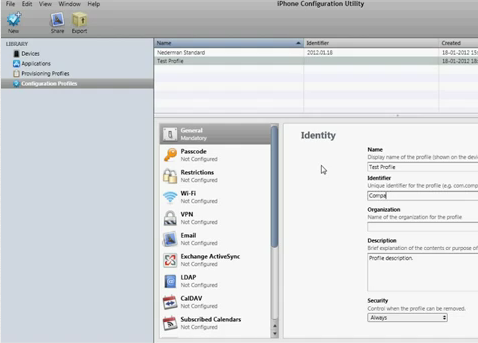
You may be an IT administrator or just the person in charge of helping your users (or friends for that matter) configuring iPhones.  Now setting up an iPhone is not hard once you have tried it once or twice, but it is still time consuming and lets face it not very fun, well imagine that you had a piece of software in which you could prepare the configuration and then just sms the configuration to anyone?  Well it is almost as easy as that 🙂  and best of all, I will show you how 😀

What you need is the “iPhone configuration utility” from Apple, you will find it here;
http://www.apple.com/support/iphone/enterprise/

Now you install this and are set to go, with this software you can create configurations for the iPhone (or iPad) and by connecting the device to your machine you can transfer the settings directly, this is easy enough but as mentioned you can do even better – you can send the configuration over the internet – the latter however require a web-server and maybe a little more skill that the average home user.

Anyhow, if you are an IT administrator etc. and need to setup a log of iPhones, then this is interesting for you..  You create a configuration with “iPhone configuration utility” and upload this to a web-server, eg. as http://www.webserver.com/iphonesettings.mobileconfig and now you can just sms the link to this page/file to new employees or BOD “bring your own device” users.  Now one word of caution though, if you publish your config this way you MUST omit ANY sensitive information like email, domain name, username and passwords, this however is not a problem – any information not entered will just be prompted – so if you omit the username and password the user will just be prompted for this when installing the configuration (information like this is likely known by the user, or could be included in the sms).  That some outside user may be able to read what mailserver you use is not really a problem, this information is already public knowledge via eg. NSLOOKUP – so there is really no security issue with this unless you include passwords etc. which you should avoid as mentioned.

The settings set this way are entered into the phone as a “Profile”, you can configure that this “Profile” can be removed “Anytime”, “Via Password” or “Never” (never mean that you need to reset the device to remove), if you remove the “Profile” it will also remove all data related to the profile (eg. if email settings was part of a profile, it will also remove the emails as part of the removal – but if you setup additional email’s manually these will be left alone).

What can you configure;
Almost anything, just to mention a few things; Email, VPN, WiFi, Policies (you can enforce password etc. etc.).

See my walktrough here for more details etc;


Ps.
If you upload the configuration to a webserver, you may need to set the mime type and remember to NOT change the extention of the file (.mobileconfig).