screen9

Now this seem fairly cool, a utility that will allow you to monitor running applications, take action upon conditions met and give you great statistics.  All in all it looks promising enough.  I will hopefully be giving it a spinn shortly.

Get it here; http://www.drinkprog.com/kiwi/

And yes sure enough, nothing super good is free and hence you seem to have to pay for the advanced features, but lets first see if its worth the money 😉

note;
I just did a quick install on a virtual pc and I am a bit disappointed, both the layout of the software and the timers in it seem to be off.  Could be that its because of the virtual environment but….

en_virustotal-uploaderYou may recall me mentioning Virus Total, this is a priceless service that allow you to upload a file and have it checked by many different antivirus engines within seconds. Excellent if you are suspicious about a file, or just if you want to be sure that the file you just downloaded is clean.

Well I did not mention another neat feature from Virus Total, a “send to” addition to Windows right click options. Once this is installed you can right click on ANY file and have it uploaded to Virus Total for analysis easy and painless.

VirusTotal Uploader

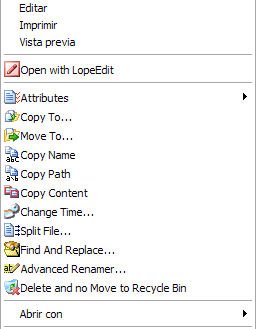
menuJust stumbled over this tool, it seem to be very practical (sure its not rocket science, but its easy and convenient) 😉

Now you can customize the context menus of Windows Explorer to add your own functionality and not only is it easy, its free as well 😀

http://www.lopesoft.com/en/index.html

.

sms2 Bit of an oldie here, and still untested with newer GSM Phones, however should you want to have SMS capability in your organization this may be a cheap way to go.

It requires a compatible phone (and cable) and then you can fire off scripts (or commandlines) to send sms messages.  Seem easy enough, but sadly I don’t have a data cable to the old Nokia phone in our storage room 🙁

Do let me know if you try it and it works 🙂


http://www.microsoft.com/globaldev/outreach/dnloads/smssender.mspx

SMSSender.msi

Update:
I finnally had the chance to test this (I had no data cable for my cell phone), anyway it is all very straight forward until you try to send an sms from command line, this will fail with a message like this “there is no device previously used by SMS sender…….”.

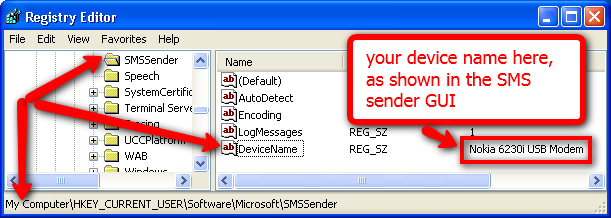
Unfortunately the SMS sender software has a bug that causes it NOT to write your choice from the GUI to registry :-(,  so you need to enter the device name manually to registry.
smsreg


The keyname is;
HKEY_CURRENT_USER\Software\Microsoft\SMSSender
The key is a sting;
DeviceName
And the value is the name of your device/cell phone (as displayed in the GUI)
eg. “Nokia 6230i USB Modem” (without quotes)

once this is done you can send command line sms’s (as shown below P=phone number M=message L=Log message);

C:\Program Files\Microsoft SMS Sender>smssender.exe /p:12345678 /m:"Hello World" /l

smsreg1


There are more details plus some C++ code for semi implementation into your own software here (it’s a rather basic launch routine for the exe file);

http://veskokolev.blogspot.com/2009/07/how-to-send-sms-under-windows-using.html

One problem with the SMS sender software if you use it in scripting, it will once the SMS is send bring up a message window telling you that the sms was send succesfully, now this is not that practical it this actually ‘halts’ thr process until the message window is closed (the above C++ code will as I can see solve this by killing the window afterwards).  Another issue, ONLY ONE sms can be send at the time, if you try to send several SMS’s in a row the software will fail – guess that is logical enough but not that practical if the script that sends the sms can somehow be called several times at nearly the same time..

Aparantly there also exists an Outlook 2003/2007 extention (MOSA) that will do something similar vai Outlook, I have not had time to test this but as it’s also from Microsoft it should work just as well or maybe even better(however this requires Outlook);
http://www.microsoft.com/downloads/en/confirmation.aspx?familyId=240080b4-986e-4afb-ab21-3af2be63508b&displayLang=en

Are you using or thinking about implementing a Terminal server then you may know this is neither easy nor cheap.

Well me to the rescue (or well rather a link to the rescue), there is actually a cheaper and easier alternative that will make any Windows XP, 2003 or 2008 into a Terminal server without the expensive TS licensing, read more at;

http://www.xpunlimited.nl

While writing this post I also stumbled across this;
http://www.elusiva.com/products/TerminalServerPro.aspx
(Another TS alternative).

And the older free hack for Windows XP sp2 (dont know if it work after SP3);
http://concurrentremotesessions.netfirms.com/

So you are using remote desktop/terminal services and you are worried about security, well there are several things you can do to secure it among the oldies change the port number from 3389.  But hold on to your horses, now there is a whole range of new options via a new utility from 2x called SecureRDP, here you are presented with options to restrict IP, MAC, Computername and a combination of these.

If you use RDP you NEED to check this out, and best of all its FREE 😀

http://www.2x.com/securerdp/

Here’s a link to where you can download Win 2000 resource kit, it contains a bunch of interesting utilities.  One utility in particular is interesting; PassPropthis will help change the restriction so the Administrator account can actually be locked out (not for physical logon, but for remote access), neat..

For the rest or the utilities;
http://www.petri.co.il/download_free_reskit_tools.htm

sherlocklgeEver had a video or audio file you could not play?  Most likely yes and the reason is 99% sure a missing codec, a good and easy approach to combat this is to install a codec pack which contain most used codec’es (currently I use Vista Codec Pack which seem to contain all that I need and btw also works fine on XP).

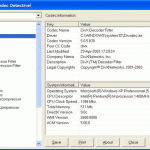
Should you however run into problems with codec’es then you may want to take a look at this “Codec detective” which will assist you in determining just what codec’es you have and their versions, this combined with a little googleing should be of great help.

So your old mother calls and says she cant connect to the Internet, bummer you have to go through hoops to make her open a command prompt, ping this and that and before you know it you have spent an hour or more.

Well Windows today actually has a decent looking utility for testing network connectivity (it may be enough for that initial test), and this may thus be worth a look before getting into the command prompt.

The utility is here;
C:WINDOWSNetwork Diagnosticxpnetdiag.exe

Or you can get it from here;
http://www.microsoft.com/downloads/details.aspx?displaylang=en&FamilyID=ea541e8e-85a3-4d2f-a3a4-b329d03fc2fa

ss_main_windowJust heard about this and have thus not tested it myself, but it sound nifty..

From the website;
It is hard to teach a group of people how to use a PC, or even how to use a specific program on a PC or the internet.

Yes, PC or web training isn’t easy. For someone who’s doing something right, there are probably two others doing it wrong, playing games, checking email, shopping…

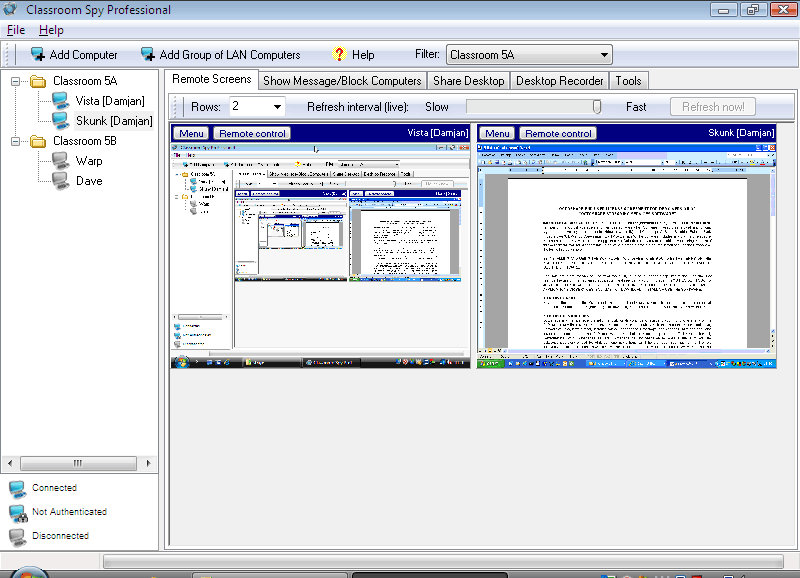
Classroom Spy lets you see what everyone’s doing – without leaving your desk. You can monitor the activity of all the PCs in your classroom remotely. Plus, you can share your screen with your students’ PCs, making demos and presentations much easier.

http://www.classroomspy.com/
http://www.classroomspy.com/download.htm