Various cool software and more

2009-06-09_2316I looked for this for ages, but at some point I got my google search right and this is what it turned out;
http://www.winhelponline.com/blog/configure-services-mmc-to-open-in-standard-view-by-default/
Credits to Ramesh Srinivasan for writing this short guide;

The Services MMC Snap-In has two views namely Standard and Extended. The Extended view provides information about the selected service in the left side of the details pane. Also, it includes links for starting, stopping, or pausing the selected service. If you have a small monitor and need more screen real estate, you can configure the Services MMC to open in Standard view by default.

Open Services MMC Snap-In in Author mode

You can use MMC in author mode to create new consoles or modify existing consoles. Follow these steps to set Services MMC start in Standard View by default.

1. Click Start, Run and type %windir%\system32

2. Backup the file Services.msc and store in a safe location

3. Right-click the file Services.msc, and choose Author

The Services MMC Snap-In opens in Author mode, in which you can customize the window size, pane width, view mode (Standard or Extended) etc.

4. Customize the Snap-In accordingly.

5. From the File menu, click Save to save your settings.

6. Exit the Services MMC, which is currently in Author mode.

Now open Services MMC (services.msc) normally and see if the settings are applied.

Want to seriously harden your Windows installation? You may find some inspiration here; http://nvd.nist.gov/fdcc/index.cfm this is an ongoing IT hardening project driven by the US NIST with help from the NSA and USAF among others.

Maybe not that useful to the regular user, but might be inspirational to corporate users.

You maybe aware of utilities like ERD (from Microsoft former Winternals, sadly only available to certain Microsoft License holders) that will allow you to change the password for a Windows account, thus effectivelyallowing you access to the data on the pc/server? 

There can be legitimate reasons for this (forgotten passwords etc), but some users may have a more sinister motive…  to gain unauthorized access..  for the latter group utilities like ERO has a drawback, it leave traces behind, when the original user try to logon he can’t as you changed the password..  Now there are ways around this, some other utilities allow you to dump the password database before you change it, then afterwards (once you scored all the data) you can reinject the original password and only a close examination would reveal your traces.

kon-bootBut now there is a new player on the marked, Kon-Boot,this small boot cd will do something very clever indeed, it will allow you to boot into Windows as normally via a CD – and then once asked for the password you can just enter anything – Kon-Boot will simply bypass the password check..  Clever indeed. 

A few problems/concerns though;

  • Is this Kon-Bootsafe (or does it leave something nasty behind like eg a Rootkit), some experienced guys took it upon themselves to check just this and their preliminary findings is that it appear safe enough (no aparant traces left behind).
  • EFS and diskencryption will defeat this, you will not be able to read EFS (Microsoft Encrypted file system) files and diskencryption in general would serve as a protection against booting via a Kon-Boot bypass boot cd/dvd (this may however not apply to all encryption schemes / software brands).
  • Allegedly this bypass is only possible for local machine accounts and not for domain accounts (however if you use a local admin account, then once you are a local admin you will have full access to the entire disk (except EFS) and all data on it, thus this may not be a big deal).

I will have to experiment a bit with this in the near future, it sounds disturbing.
Update; I just tested this on a VM, and it works just as advertised on an XP installation, interesting indeed…

Update 2; I checked this on a domain account, if the user has his profile/password cached (have been logged on previously) you CAN logon locally and access the users data – BUT ofcause no access to network ressources and you will see a warning that your credentials has expired (or something to that effect).  I also tried a locked/disabled account, and here I was unable to logon.

Read this excellent post by Claus Valca on Kon-Boot

And see the YouTube demo on how it works;

threadcompressorIt is always nice to get hold of cool add on’s to applications you use often, especially if they add extra cool functionallity.

This add on to outlook will help you reduce your mailbox size by deleting redundant data (which is always nice as your mailbox just keep growing), I won’t go into details as this blog post explains it nicely.

Visit Grand Stream Dreams for the whole story including how to download and implement it.

The installation of the plugin is done more or less like this (taken from Grand Stream Dreams);

INSTALLING

* Firstly, download the ZIP and save it locally.

* Create a folder you’ll find again – I’d suggest C:\Program Files\Thread Compressor or similar.

* Start a command prompt – WindowsKey-R then
cmd <enter> (though if you’re on Vista or Win7, just press WIndowsKey, type cmd, then right-click on the cmd icon and choose “Run as Administrator”)

In the command prompt, type:

cd c:\program files\thread compressor (or wherever you put the files)

regsvr32 comdlg32.ocx

regsvr32 msflxgrd.ocx

regsvr32 tabctl32.ocx

regsvr32 threadc4.dll

Download the latest CDO file from here, save it somewhere, expand it out and run the install from the ExchangeCDO.msi file.

Now start Outlook: how you actually install the addin will vary depending on your version of Outlook, but try:

Tools | Options | Advanced | Add-ins,

or Tools | Trust Center | Add-ins | [then hit Go to manage COM add-ins]

and add the threadc4dll file manually. If it’s successful, you should see Comrpess Threads on the Tools menu, and you’ll get a splash screen next time you start Outlook
CAUTION!
The default setting for this plugin will delete data in your mailbox (which is the whole point of the plugin), so be sure to understand how it works before implementing it 🙂

I just stumbled across a blog post from Claus Valca  refering to VistaPE, as I could judge this is more or less a replacement for BartPE which has been dead in the water since 2006.

VistaPE should allow you to create a bootable CD/DVD with the Vista kernal (much as BartPE did with the XP kernal), this is useful as a recovery tool/image tool/repair tool/virus cleanup tool etc.  I have previously created antivirus cleanup cd’s using BartPE, but maybe VistaPE could offer better compatibility with the later hardware models.

I will add this to my “I have to look into this list” (which sadly has become quite long)..

doubletwistDoubleTwist will allow you to sync music and video from Itunes to a lot of other devices than Iphone/Ipod (such as PSP, Blackberry, Nokia etc), and whom other than DVD JON to be involved in such an annoyance to Apple.

Download a free beta from the DoubleTwist website.


.

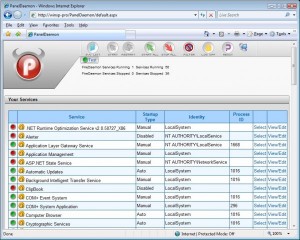
paneldeamonSo you would like an easy approach to delegate service administration for your servers, well that is easily done with PanelDaemon.

You install IIS and then PanelDaemon on your server, now you can create users/groups that can remotely manage services on your server (start, stop and restart etc)..  You can upon user/group creation decide which services a user should be able to manage and thus not necessarily give control to all services.

It’s cool, it works and it’s free 🙂  Just the way we like it..

Get it here

So I was at this seminar and was introduced to MS Windows 2008 R2 and Windows 7, and sure enough it all looked cool.  So I decided that the old P4 I had in a corner would become a new test server for the free HyperV 2008R2 server (note all the betas can be downloaded and used freely)..

And sure enough it supported 64bit, so I fired it up and began installing the HyperV 2008 R2 server (the free one without the GUI)..  It took a couple of attempts (the NIC somehow was not very co-operable) but then it was up and running.
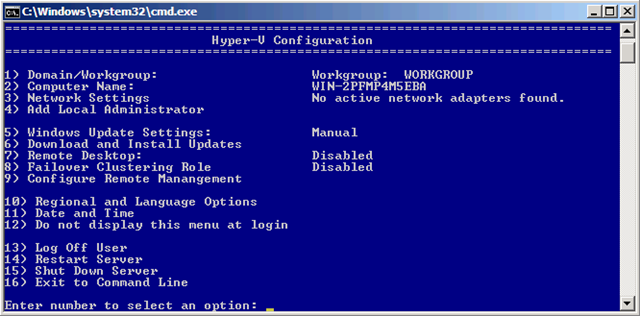
win2008menu

As you can see they have even added a nice little “Dos” menu, so you can configure the darn thing..

Well so far so good, after configuring it and installing the HyperV management tools on my Vista Workstation, I went on and configured the HyperV settings on the Win 2008 R2 server and then finally I created a new Virtual PC – a Windows 7 (yeah why not).. 

However my feeling of success was short lived, once I clicked on the “Start” button for my newly created Win7 virtual pc I got an error message telling me that the virtual pc could not be started because the HyperV service was not running..   Now there was NO error messages anywhere, so I was reluctant to believe this, but a bit of Googling let to a suspicion, and then to a visit at www.grc.com where I downloaded “securable.exe” a small freeware utility that will test your chipset.

See, just because you have a P4 that support 64bit that does not mean that it will support HyperV, hence time wasted 😐  Everyone know this!?  No!?!  Well neither did I, or rather I vaguely recall having heard something to that effect, but hey when it would install and run 64bit then I thought everything was dandy..  It’s not though, it’s just not…  The same problem is btw true for Windows 7, the new Virtual XP you can install and use on top of it, it only works if your chipset support  “Hardware Virtualization” – sigh…)…

hyperv-error3

So if you want to check out the new servers, be sure to download “securable.exe” and check for support for Vitalization before you start.  That said and warned, then the HyperV 2008R2 server looked great and fairly easy to configure, I may once it’s released from beta move my VMWare2 server to this platform instead (my current server DO support “Hardware Virtualization”, thank god for small wonders).

So lesson learned, check the specs before you begin..

BUUUUUT, it would have been nice with a Warning or a Caution from the installer “Your chipset does not support HyperV”, now how hard could that have been?   Installing the HyperV 2008 R2 server really makes no sense if you do not plan on running virtual machines (which is impossible without the Hardware vitalization)..

With monster applications like Office 2007 (and updates) installed on my VmWare machine  my 12gb virtual hdd quickly became a tad to small, and how do you expand a VmWare harddisk (well not from the GUI, which to me seem quite lame but true never the less)!?

Well a guy called Alexey Vasilyev was kind enough to write a simple 4 step guide, which I even managed to cut a few steps off..

Anyway, here it is enjoy;
http://www.vmweekly.com/articles/expanding_the_virtual_disk_size_in_4_steps/1/

PDF version;
http://www.vmweekly.com/pdf/expanding_the_virtual_disk_size_in_4_steps.pdf

A quick security tip for you, on your laptop/netbook check your network configuration and remove the check mark under “File & Printer Sharing” for your wireless adapter.

wireless111

Why!?  Well you likely do not share that many files/folders/printers (if as, I suspect, any!?) on your pc while working wirelessly!?  Now where do you use your wireless network??, ANYWHERE both on hotels, work and at home and as many vulnerabilities target the ports used by “File and printer sharing” then you are unnecessary exposed.   Once disabled you can still access shares on a file server and on other computers, you just cannot share on your own computer (wireless only, it still work for wired network).

Why not do it on all adapters you say (including your wired LAN), well if you are not sharing any files or printers – go ahead it will all improve your security, however if you occasionally share files with co-workers etc. then this may not be ideal to you..

Think about it, how often do you share files or printers with co-workers/friends/family via Wireless network?  Rarely right?  And when you are at Starbucks or wherever which type of connection do you use?  Wireless!!  Exactly, and that is why you should at least disable “File and Pritner sharing” for your wireless net card.. 

PROS;  Really raise your security level for exposed environments, no real loss in options, speed or productivity.

CONS; None really, only if you really need “File and Printer sharing” via your wireless adapter (which as I mentioned is fairly unlikely).

Workaround if you DO need File sharing wirelessly;
Yes ofcause you can have your cake and eat it too..
hfs1If you need to share files with friends, coworkers etc, then there is a nifty small freeware utility that may be of interest to you called HFS, its basically a small webserver that you can run on demand (it does not install anything services, autolaunch at start up etc.) .  All you need to do is to download it, run it and then drag files you wish to share into it, your coworker, friend or whomever can simply download the file via his/her browser (you can even set password or limit the download speed so they don’t steal all your bandwidth).