Various cool software and more

I have twice seen this issue, you try to log on to a Windows 2003 server remote via RDP and get a black screen with black text – now you can still log on but you can’t read what you write on the logon screen.

The issue appear to be rather trivial to resolve, yet I am still puzzled as to what causes the issue in the first place.  A colleague of mine Anuphol Urailat actually found a MS article on this http://support.microsoft.com/kb/906510/en

The problem is that the “Color” section under “Control Panel” in “.Default user” in the registry is set to “0 0 0” (Black) for everything, you simply export a clean “Color” section from another Windows 2003 box and viola everything is back to working condition.  You can even do the import via Remote Registry edit, so it is rather trivial to resolve.

Before;

After fix;

I suddenly had the need to have a user send me some detailed info about his Windows 7 PC, and vaguely I recalled some utility that could make this as an export file you could send via email.

And sure enough this still exist under Windows 7 🙂

it’s called;
msinfo32.exe  (yes its the same name for x64)
(just hit <left windows button> + <R> on the keyboard and launch <msinfo32.exe>).
You can export the data to a text file (do this instead of the binary file it can export – I have experinced that the binary file somehow get ‘damaged’ during email transfer).

For more info look here;
http://www.winvistaclub.com/f7.html

Microsoft has released a no-nonsense simple to use, free and downloadable tool – Microsoft Security Scanner – to check and cleanup virus infections (or suspected infections).

This tool is not intended as an antivirus, it is intended as a cleanup utility for infected computers or as a tool you can download and do a double-check to confirm you are not infected (say your installed antivirus is unable to detect a certain virus/malware, then you can double check using Microsoft Security Scanner).

You can download it free from here (note the download only works for 10 days, then you have to re-download an updated version, this is to ensure the virus detection patterns are always fully up to date);
http://www.microsoft.com/security/scanner/en-us/default.aspx

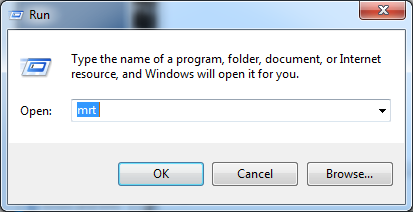
A good thing to also do is to run Microsoft Malicious Software Removal Tool from time to time – this is done automatically as part of  Windows Update, however this is only the ‘fast/quick’ scan – by starting the MRT.EXE manually you can do a FULL scan.  The Malicious Software Removal Tool is installed on all windows machines and updated/maintained via Windows Updates.

to run it;

Btw; McAfee has  a similar yet not so comprehensive utility called Stinger (also free download);
http://www.mcafee.com/us/downloads/free-tools/stinger.aspx

Just found an alternative to www.dropbox.comcalled SugarSync, it offers a free version as with Dropbox and from what I can read with more space to begin with.

Comparisons made by various reviewers on the net seem to suggest that Dropbox is slightly easier to get started with, however pricing on SugarSync appear cheaper.

Had Dropbox been 1-3$ and not 10$ a month I had been a paying customer, but 10$ for 50gig is just too steap 🙁

Check out SugarSync here;
https://www.sugarsync.com/free/

a few oter alternatives here;
http://techpp.com/2010/07/05/dropbox-alternatives-sync-files-online/

And finally (note the price is per year not month);
http://emea.trendmicro.com/emea/products/personal/safesync-solution/

This is clever, I don’t need it and can’t see that I ever will – but it’s still clever..

You may have heard about technologies like JBOD (Just a bunch of disks)which allow you to link a bunch of harddrives you have into one driveletter.  The upside is that you can ‘reuse’ those old drives you have lying around (normal RAID configurations require that disks be of the same size as a minimum), the downside is that there is NO redundancy/security in JBOD.

Drive Bender is similar to JBOD, it will allow you to link together free diskspace from a bunch of different drives into one single volume.  One thing that is slightly different and potentially clever is that the technology is “non-intrusive” meaning that it will not destroy the existing filesystem (NTFS) – it will simply store it’s files on the existing filesystem (as I understand the technology), you should even be able to access files on the disks without going through Drive Bender.

As mentioned I can’t think of a sittuation where I personally would need this, that however does not make it less clever 😀

Right now it’s in a beta state and by invite only, so you’ll have to sign up for the next beta round.

Pricing is not revealed, one could hope it would be free 🙂

http://www.drivebender.com/drive-bender/

Have you ever seen those warnings from your browser “The HTTPS content you are…..” stating that the page you are loading contain both HTTP and HTTPS?  The answer is most likely yes, sure you can disable these warnings (which due to their frequency may even be necessary) but for the sake of security or even just curiosity you may wish to know just what it is on the webpage that is HTTP and not HTTPS (often it’s simply an image, however if it should prove to be a java-script it might be a good reason for a raised eyebrow).  Anyhow, how do you get this information?  Well I found a mention of something called HTTP Watch in a forum somewhere (can’t remember where sorry), this is an add-on to IE/Firefox that will allow you to see what’s going on when loading a web-site, simply install – rightclick on the web-site and choose HTTP Watch – record and re-load/load the page and get the complete list of objects loaded..

Cool, and better still the Free version is quite sufficient 😀

http://www.httpwatch.com/

An interesting new notification system for iPhones, to replace the notifications in iOS – it looks very interesting indeed..  I am just thinking, how do I install this on my iPhone – guess I’ll have to read the entire thing 🙂

Read more here;
http://techotrack.com/archives/4578

YouTube demo here;
http://www.youtube.com/watch?feature=player_embedded&v=SRU6_QnwNCE

Project page here;
http://github.com/peterhajas/MobileNotifier

You should be able to get MobileNotifier for free by adding the following repo to Cydia
http://phajas.xen.prgmr.com/repo
Originally Posted: http://thetechjournal.com/electronics/iphone/mobilenotifier-brings-ios-notification-to-your-iphonejailbreak-tweak.xhtml#ixzz1GxZxHmyk

So I was looking into the possibilities to backup my Hyper-V “farm” (well I do got a few servers running on my Windows 2008 R2 Hyper-V server ;-)), and I came to think of good old NTBackup from Windows 2000/2003.  NTBackup has however been replaced by “Windows Server Backup” which is both good and not so good, I think that the new product is likely more professional in some senses however it has some strange ideas on how to do some of it.

Anyway, I have only looked at it for a couple of hours but here are my findings, maybe you’ll find them useful in getting started yourself.

First off you must install “Windows Server Backup” on Windows 2008 R2 this is a feature – so add new feature …….

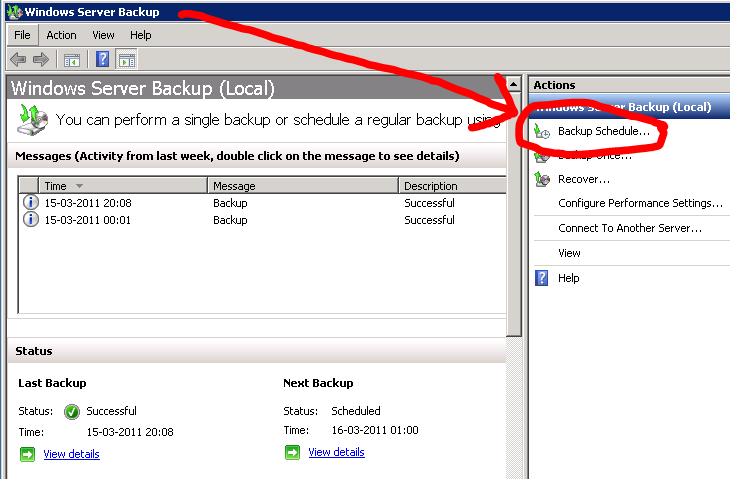
Then you would likely like to setup a new backup schedule, and here is one of those strange tings I mentioned.  The MINIMUM interval for a backup schedule on Windows Server Backup is 24 hours, that mean that the job HAS to run at LEAST every 24h – Now this may be well and good in some setups, but I don’t need a backup of my Virtual servers every 24h!?!?  My poor server would die under the workload 😀  But in the GUI there is NO way around this 🙁  I found a web-cast where a command-line workaround was outlined, but I might not have payed enough attention because I could not get it to work and thus sought alternate solutions. 

MY workaround for this scheduling issue is this;

  • Start Windows Server Backup
  • Create a “Backup Schedule” (it’s a wizzard, so it is quite easy)
  • Now close Windows Server Backup
  • Goto – “Start menu”, “Administrative Tools” and select “Task Scheduler”
  • Drill down to; “Task Scheduler Library”, “Microsoft”, “Windows”, “Backup”
  • Now edit the job “Microsoft-Windows-WindowsBackup”
  • Edit the “Trigger” and you can now set the job you created to launch whenever you want

I’m sure there are other ways, but this is easy and works.

Some screenshots;

And finally some light reading for further details 🙂

http://blogs.technet.com/b/filecab/archive/2009/04/13/customizing-windows-server-backup-schedule.aspx

http://blogs.technet.com/b/filecab/archive/2009/06/22/backup-version-and-space-management-in-windows-server-backup.aspx

Web-Cast (quite informative);
http://www.netometer.com/video/tutorials/windows-server-2008-backup/

I might drill further into this at a later point, but for now this seem to satisfy my needs.

Just found an interesting post about WOL (Wake on lan) over the internet, now that sound kind of useful 😀

Check it out here;
http://www.ezlan.net/WOL.html

Among other you will need this;
Wake on Lan GUI
http://www.depicus.com/wake-on-lan/wake-on-lan-gui.aspx

Update;
I have “installed” and tested this, but so far sadly without luck :-/ I will hopefully have time to do some more digging in the near future, but I am a bit sceptic, when the PC is off it does not have an IP!?  It may work if you have an ADSL modem but with a router I can’t really see how it would work.

Imagine this, you are a technician that often need to configure/re-configure Cisco devices – this mean you have to carry with you a laptop and the blue Cisco cable to configure those darn devices..

Well that was then, this is now 🙂  Now all you need is this cable, your iPhone and an App..  Clever indeed 😀

http://techotrack.com/archives/4806

Ps. Should you need an RJ11 connector that is also an option;
http://www.engadget.com/2010/02/12/redpark-announces-serial-and-rj-11-cables-for-iphone-ipod-touch/