tmb_main

Trying to manage your huge MP3 collection?  Perhaps collected over a long time, well the problem often is that some of your MP3 files has incorrect or missing graphics and or ID3 tags…  Well this tool can help you to manage your MP3’s, I have not tried it personally yet but it claims all sort of neat features 🙂  Give it a spin.. 

Get it here;
http://www.mp3tag.de/en/index.html

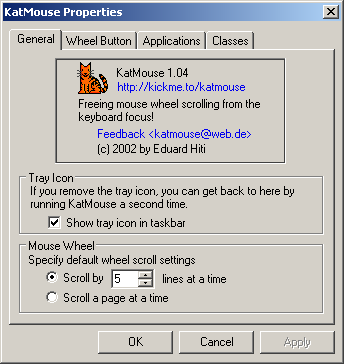
katmouseNow this is a difficult one to describe, so my best advice is simply to download and try it – you’ll either think this is engenius how could I ever live without that or you’ll think what!? I don’t get it!?

Ok what it does is to optimize wheel scrolling, lets say you have 5 windows open and you have to scroll a lot in these different windows, now the way windows works is that the window you want to scroll need to have focus – so you have to click the window you want to scroll! Well not if you have KatMouse installed, it is quite clever, KatMouse will let you scroll the window under your mouse focus or not, as I said you’ll either think this is immensely clever or not get it.. Try it out and see what you think. (it’s free :-))..

Http://kickme.to/katmouse

Drop your USB stick, stop carrying around that dumb USB stick in order to syncronize data from your work pc and your laptop.  When you install Dropbox you get a ‘cloud-folder’ in which you can copy data to, a second later this is also available on your laptop..  easy as pie..

Well this is nothing ‘new’ or original, but it seem quite easy and its free so why not throw it at you.  If you like it you can upgrade from the free 2gb version to a paid 50 or 100gb solution.

Get it here;
https://www.dropbox.com/referrals/NTMzODAwODY5

mainScreenshot


A followup to a previous post; https://readmydamnblog.com/?p=674

Under Windows Vista and now Windows 7 I quite often experience problems with locked files, eg. I have worked with a file previously and now want to delete it just to be told that this is impossible as the file is in use, I have not found any explanations to this – my own guess is that it could have something to do with poorly written applications (that does not free files correctly) but this is pure guesswork.

Anyhow, it is very annoying to have to reboot the machine to be able to delete a file, and of cause this is often not necessary – Lockhunter to the rescue..  Lockhunter is a free utility to unlock these locked files, it works like this; you install lockhunter, right click on a locked file and selects “Unlock….”, you will go through a wizard to help unlock the file and viola problem solved you can delete the file.

My previous post on the subject regarded; Unlocker a similar tool, however Lockhunter seem a bit more informative (tell you what process is locking the file) and Lockhunter has a 64bit version.

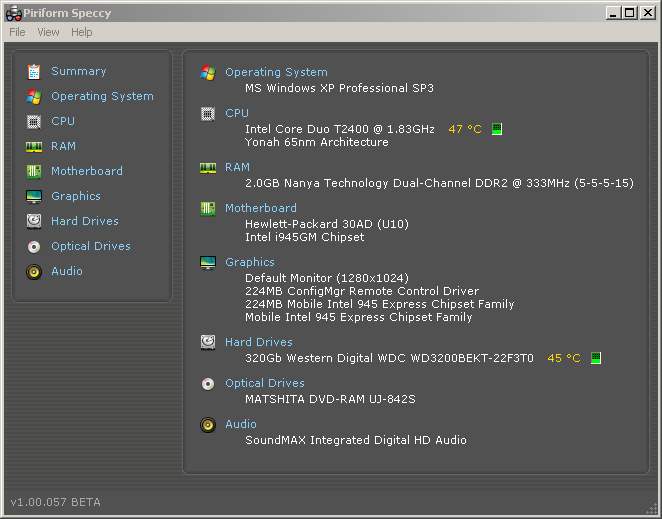
Want to know more about the PC you are sitting at, eg what type of ram (in the lowest possible detail) is installed (important if you want to upgrade), well this free tool can do this; http://www.piriform.com/speccy

2009-11-12_1426

Also you should check out their other utilities, they are equally great..

be sure also to check out;

http://www.alexnolan.net/software/

where System Spec also is among the more useful hardware inventory programs, but there’s also a bunch of other useful utilities there.


.

safeHaving problems remembering those damn passwords?

Well there are tons of password managers out there, so how is this one different?  Well it is cloud based and that gives you the advantage that your passwords are also stored in the cloud (encrypted of cause), so if you need them on a different machine or you reinstall – yep you guessed your passwords are still there.

Features like browser integration etc. is still there so that is pretty regular.

https://lastpass.com/

I have not yet tried this, but it sounds neat.

Two good alternatives (not cloud based) are;
http://passwordsafe.sourceforge.net/
http://keepass.info/

So you have a notebook and want to install Windows 7, how the f… do you do that you think – there is nowhere to insert that damn DVD?!?!

Well why not install via a USB pen?

So grab your USB pen and visit here; http://store.microsoft.com/Help/ISO-Tool

A few things you will need though, 1 USB pen (aprox 5 gb) and to convert your DVD to an ISO file (the latter is rather simple, there are numerous utils that can do this – google it).

An alternative to this is; http://wintoflash.com/home/en/ (should be able to grab the data from the CD/DVD and should work with other versions of Windows as well).

I have not yet tried any of these, but gotten them recommended.

Microsoft has released a nifty FREE security ‘suite’ to protect just about any existing .exe file, this is done by hardening the existing compiled .exe file by adding DEP and other neat protection features (overflow protection etc) – for the “full” description see link at the bottom.

The documentation is sadly very poor, but here is a quick guide to getting started.

The concept would be something like this;

Download; http://go.microsoft.com/fwlink/?LinkID=162309

Install/copy the files to;

 C:\windows\system32

Find an exefile you want to protect (eg. notepad.exe)

Start a command prompt and type;

C:\>EMET_conf.exe --add c:\windows\notepad.exe

This is the output;

EMET 1.0.2 Adding c:\windows\notepad.exe to EMET-ized processes: Ok

Type;

EMET_conf.exe --list

to list all protected applications.

Once the above is done the application is protected, protected against what?  Well protected by among other DEPwhich will greatly improve security against buffer overflows etc. plus a few other protection schemes.  The cool thing is that this is done without modifying the application, and hence just about any application can be protected.  Note, not all applications may work when protected, if you protect an application that afterwards no longer work then unprotect it from a command prompt by typing

C:\>EMET_conf.exe --delete <application file> (eg. c:\windows\notepad.exe)

Warning!!!

Do not remove the EMET files from c:\windows\system32 before unprotecting the .exe files, the protected applications WILL NOT RUN without these files (they will still work on another machine, the .exe files are not modified).

Links;
http://blogs.technet.com/srd/archive/2009/10/27/announcing-the-release-of-the-enhanced-mitigation-evaluation-toolkit.aspx

http://go.microsoft.com/fwlink/?LinkID=162309

Update Nov 5th 2009;

After working a bit with this EMET I contacted their technical dept. to get some info on how it works (as mentioned the documentation is fairly superficial), and I actually got something useful back;

The protection is ‘obtained’ by setting a debug code that launches the application via the EMET launcher (EMET_launcher.exe), this is done by creating a key for the protected application under “Image File Execution Options” in registry “HKEY_LOCAL_MACHINE\SOFTWARE\Microsoft\Windows NT\CurrentVersion\Image File Execution Options” .  Thus every time you launch the protected application the execution is intercepted by “Image File Execution Options” and passed on to “EMET_launcher.exe” and launched in a shielded environment.

An interesting detail is that if you include a path when adding an application (EMET_conf.exe –add c:\windows\notepad.exe) then this will only affect this one file (eg. c:\windows\notepad.exe), but if you only protect like this; EMET_conf.exe –add notepad.exe then ALL instances of notepad.exe will be protected (no matter where they are on the disk)..  Renaming a protected file will remove the protection, it only works by file name.

The latter might sound like fairly poor protection and/or easy to bypass, however keep in mind this is not an antivirus solution it is an additional shielding against known and unknown buffer overflow (and more)  for existing applications, so with this in mind I think it is ok..  EMET is an easy to implement additional security feature.

sunpcSUN has a free virtualization platform called SUN VirtualBox, so whats new in that you might wander – many companies offer virtualization these days!?  The cool thing here is the word “Free” and lets add “Fast” to make it interesting, the solution is not only free it’s also fast and even somewhat compatible with Microsofts virtual pc format (it can import a .VHD file and start it without much hassle).

So if you are into a free, fast and quite well working Virtualization solution then take a look at “VirtualBox” from SUN.

http://www.virtualbox.org

Source;  I heard this ‘tip’ on the Windows Weekly podcast at Twit.